.svg)
.svg)

.svg)
.svg)



%20(1).jpg)
.jpg)
.jpg)
Our Apps Have Driven
5X AOV | 2X Conversions | $30M+ Additional Revenue
5X AOV | 2X Conversions | $30M+ Additional Revenue
.svg)


5.0 (3000+ Reviews)


Shopify Apps





.svg)

Free shipping can be the nudge that turns a hesitant shopper into a paying customer. But if you offer it without a clear strategy, shipping costs can eat into your margins faster than sales grow.
Shopify lets you set up free shipping using native shipping rates and discount settings. If you need more flexibility, you can use a dedicated free shipping app to create conditional offers, set eligibility rules, and combine shipping promotions with other discounts.
In this guide, you'll learn how to offer free shipping on Shopify, set eligibility rules based on order value or other conditions, and promote your offer in ways that encourage purchases without compromising profitability.
Free shipping means customers don't pay a separate shipping fee for eligible orders. Your business covers the delivery cost, either directly or by accounting for it in your product pricing and overall margins.
Shopify lets you offer free shipping through shipping rates and discount rules. For example, you can create a free shipping rate for all eligible orders, offer free delivery on purchases above $50, or provide a discount code for a limited-time promotion.
Your offer can also have specific conditions, such as a minimum order value, eligible products, customer eligibility, or delivery locations. These conditions help you control when free shipping applies and how much it costs your business.
You can configure free shipping directly in Shopify or use a dedicated app when you need more promotional flexibility. Native settings work well for straightforward shipping rates, minimum purchase requirements, and discount codes.
An app can help when you want to combine shipping offers with other discounts, apply advanced targeting, or show shoppers how close they are to qualifying for free shipping.
Shopify's built-in shipping and discount settings cover most basic free-shipping scenarios. Choose a method based on your offer, eligible products, shipping destinations, and order requirements.
A flat free shipping rate allows eligible customers to select a shipping option that costs nothing at checkout. This works well when you want to offer free shipping across an entire shipping zone.
Customers who qualify for the shipping zone can select the free rate at checkout.
Choose a $0 flat rate when you want to offer free shipping on all eligible orders within a particular zone, without requiring a minimum purchase.
A free-shipping discount code lets customers claim shipping at no cost by entering a code at checkout. It's useful for email campaigns, influencer promotions, customer retention, and limited-time offers.
Shopify lets you exclude shipping rates above a specified amount, which can help restrict the discount to lower-cost delivery options. Test the code with an eligible order and one that should not qualify before distributing it.
Choose a discount code when you want to distribute free shipping through specific campaigns or customer communications and control who can redeem the offer.
Weight-based shipping rates let you determine shipping costs according to the total weight of an order. You can set a $0 rate for a qualifying weight range while retaining paid rates for heavier orders.
Make sure product weights are accurate and that your rate ranges cover the orders you expect to receive. Missing weights or gaps between ranges can lead to incorrect shipping calculations or unavailable rates.
Choose weight-based free shipping when delivery costs vary significantly by parcel weight and you want to limit the offer to specific weight ranges.
You can configure shipping rates for selected products instead of applying free shipping across your entire catalog. This can support product launches, seasonal promotions, or offers on products with sufficient margins to absorb shipping costs.
Shipping profiles control which shipping rates apply to products. If a customer orders products assigned to different profiles, Shopify may combine applicable shipping rates at checkout. A free-shipping rate for one product therefore doesn't necessarily make the entire mixed cart free to ship.
Choose product-specific shipping rates when you want to subsidize shipping for selected products rather than your entire catalog. If the offer must depend on specific products being in the cart, confirm that your chosen shipping or discount setup supports that condition.
Shipping costs vary by destination, so offering free shipping everywhere may not be commercially viable. Restricting the offer to selected countries or regions helps control delivery costs while keeping the promotion attractive.
A shipping rate applies to the products and destinations covered by that rate. A free-shipping discount has its own eligibility settings. Ensure your store can ship to the selected destination and that the destination is part of an active market.
Choose location-based restrictions when you want to offer free shipping only in regions where fulfillment costs fit your budget or where you want to run a targeted promotion.
Customer-specific free shipping can support loyalty campaigns, VIP offers, win-back promotions, or incentives for returning customers. Shopify lets you restrict free-shipping discounts to specific customers or customer segments.
Available eligibility conditions depend on the discount configuration. Don't assume every customer-tag or advanced targeting rule is supported by Shopify's native settings.
Choose customer-specific free shipping when you want to reward selected customer groups or run targeted campaigns instead of extending the offer to every shopper.
A minimum-spend threshold lets customers qualify for free shipping once their order reaches a specified value. It can help offset delivery costs and encourage shoppers to add products to their carts.
For example, if your average order value (AOV) is $55, you could test a threshold of $65 or $75. Choose the amount based on your product margins, average shipping cost, and the additional spend needed to make the order commercially viable.
You can set a minimum order amount on a shipping option or create a free-shipping discount with a minimum purchase requirement.
If this option isn't available in your interface, you may be able to create an order amount-based shipping rate, set its qualifying range, and price it at $0. Make sure the configured ranges cover the order values you expect.
Choose a minimum-value shipping rate when you want free shipping to be built into your shipping options, without requiring customers to enter a discount code.
Shopify calculates the minimum purchase amount using product prices, excluding taxes and shipping charges. If another compatible product discount applies, the discounted product prices may count toward the threshold.
Choose a free-shipping discount when you want to manage the threshold as part of a promotional campaign, apply customer eligibility rules, or use a discount code.
Whichever method you choose, set the threshold using contribution margin rather than revenue alone. If the additional products customers buy don't cover the shipping subsidy and other variable costs, a higher AOV may not translate into higher profit.
Automatic free shipping lets eligible customers receive the offer without entering a code. This reduces checkout friction and makes the promotion easier to understand. The setup depends on how you want to apply the offer:
To create an automatic discount:
Automatic free-shipping discounts can have customer and market eligibility restrictions. Review how the offer interacts with other discounts and shipping rates before launch. Shopify's combination rules determine which promotions can apply together, and multiple shipping discounts cannot apply to the same order.
Native Shopify settings are sufficient for many basic offers. A dedicated app becomes useful when you want to manage shipping promotions alongside product discounts, customer targeting, or storefront widgets that explain the offer before checkout.
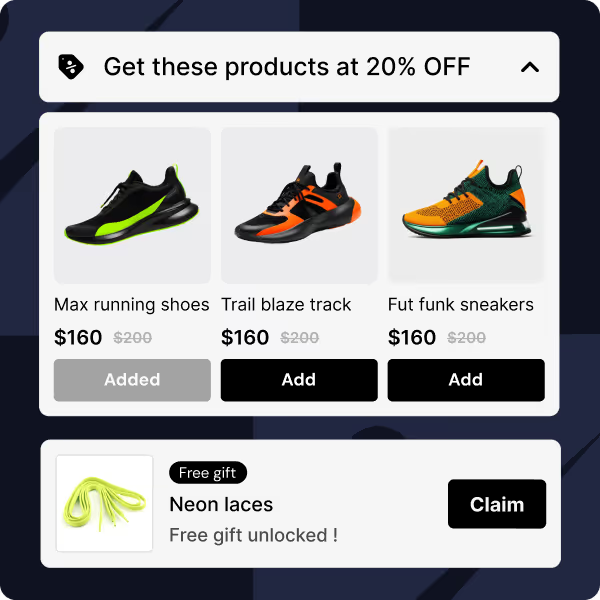
Kite: Discount & Free Gift supports tiered shipping discounts, combined discount offers, targeting features, and progress bars that can show shoppers how close they are to qualifying for free shipping. These capabilities vary by plan. Check the current plan details before relying on combined promotions, advanced targeting, or goal-based progress bars.
Start by installing Kite from the Shopify App Store and opening it from your Shopify admin. The exact interface labels can change, so use the available discount or promotion creation flow in your account. Here are the next steps:
After saving, test a qualifying cart and a below-threshold cart to confirm the offer works as intended.
Set a minimum cart value that encourages larger orders while accounting for your shipping costs and product margins. In Kite, use a Cart subtotal eligibility rule to define the threshold, then set the shipping discount to 100% for free shipping.
For product-specific offers, use rules for products, variants, collections, or product tags in the cart. You can combine these with market, shipping-country, or customer-tag conditions. Choose whether all rules or at least one rule must be satisfied. Some legacy Free plans have restrictions, so check the options available in your account.
Review the configuration before saving, because saving a new offer publishes it. Then test eligible, ineligible, and mixed carts to confirm that the intended shipping methods receive the discount. Kite also supports Buy X Get Y, including BOGO, free gifts, and tiered or volume discounts for separate promotional goals.
Kite lets you combine free shipping with product or order discounts in one offer or through separate promotions.
Kite’s Combined discount feature is available on Starter and higher plans and supports up to four discount options, including free gifts, product discounts, order discounts, and shipping discounts. To create a combined offer:
If you use separate promotions, both must allow discount combinations. Shopify allows eligible product or order discounts to combine with shipping discounts, but multiple shipping discounts cannot apply to the same order. Use Kite Discount’s Analytics to monitor promotion performance, then test the final checkout to confirm the discounts work together as intended.
Kite includes a progress bar in its Shipping discount promotion, so you don’t need a separate goal-based offer.
Test carts below, at, and above the threshold to verify that the progress bar updates correctly and the intended shipping methods become free at checkout.
A discount that looks correct in the app preview may behave differently when combined with shipping rates, other discounts, or eligibility rules. Test the full purchase journey before announcing the offer. Check the following:
If the result differs from your offer terms, review the promotion conditions and shipping configuration before publishing the campaign.
Configuring free shipping is only part of the job. Customers need to understand the offer, know what qualifies, and see the benefit before they reach checkout. Clear messaging across the storefront and marketing channels helps reduce confusion and makes the promotion easier to act on.
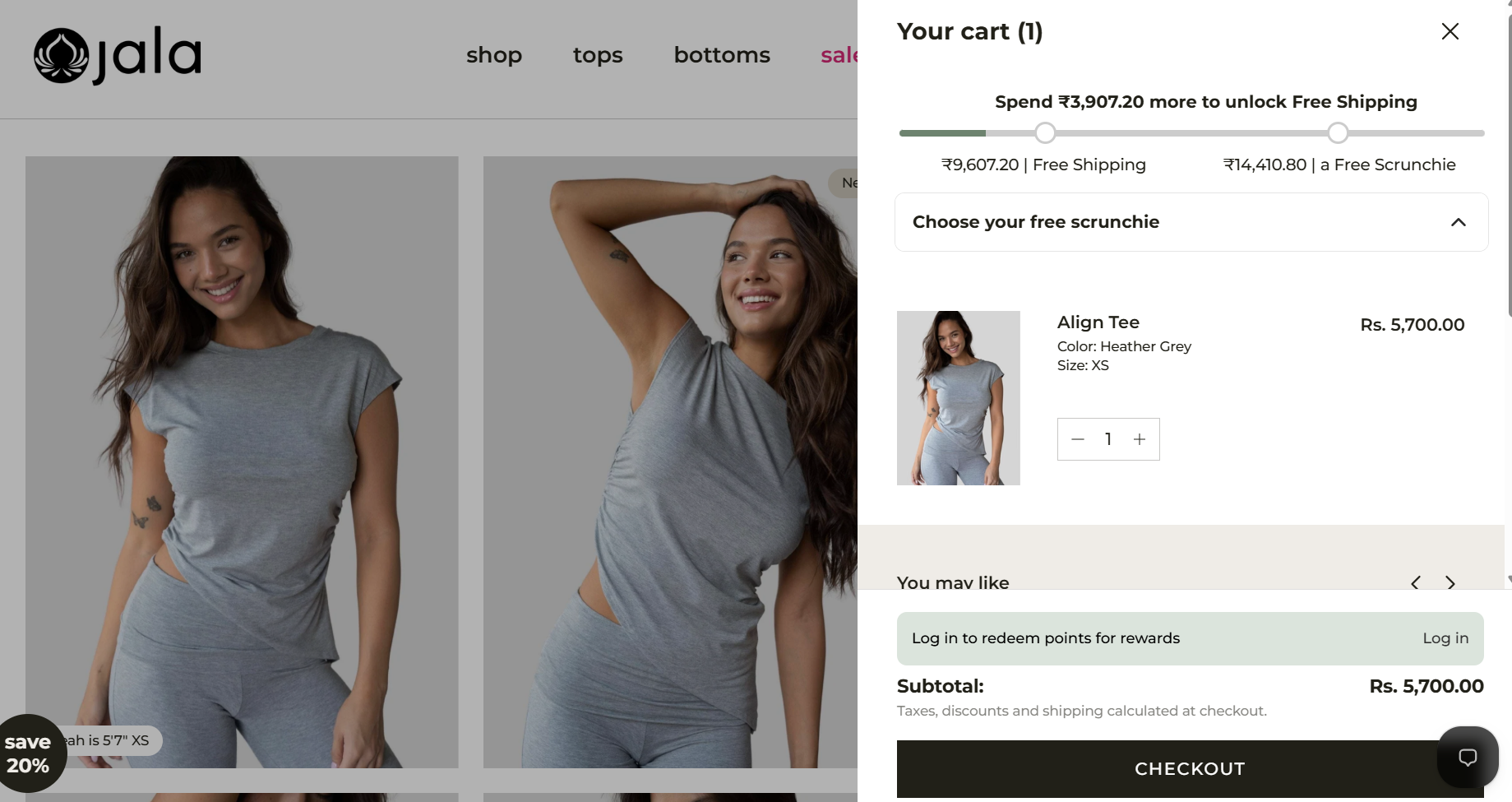
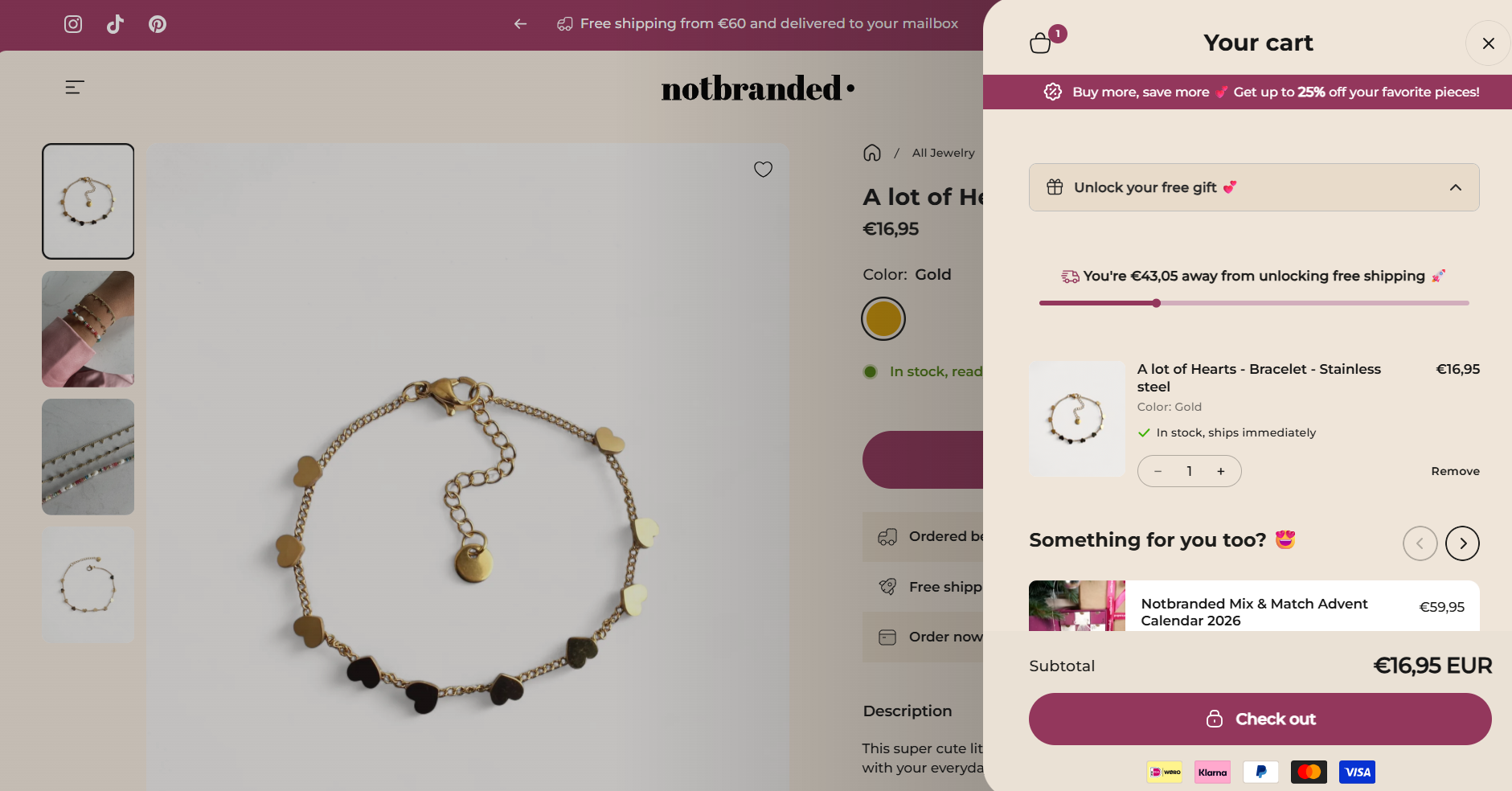
Use your announcement bar or homepage banner to communicate the offer's main benefit. For example, "Free Shipping on Orders Over $75" sets a clearer expectation than a generic "Free Shipping Available" message.
Keep the threshold, eligible destinations, and exclusions consistent across the storefront. If the offer applies only to domestic orders or selected products, make that restriction visible rather than leaving customers to discover it at checkout.
Product pages are a useful place to communicate shipping incentives before customers add an item to the cart. Display the qualifying spend near the price, add-to-cart button, or delivery information so shoppers can factor it into their purchase decision.
If the offer requires a minimum spend, explain the threshold clearly. Avoid suggesting that every order qualifies when the promotion applies only to certain destinations, products, or customer groups.
Use email and social campaigns to announce new offers, seasonal promotions, and customer-specific incentives. Segment campaigns where possible so returning customers, new subscribers, or eligible markets receive messaging that matches the actual offer.
Include the minimum spend, promotion dates, eligible destinations, and any code customers need to enter. For automatic offers, say that no code is required only after you've tested the setup.
A time-limited offer can give customers a reason to complete a purchase sooner, particularly during seasonal campaigns or product launches. Set clear start and end dates, then align the storefront banner, email campaign, and discount settings with the same schedule.
Use urgency only when the deadline is genuine. If the offer is repeatedly extended or its terms are unclear, customers may become less responsive to future promotions.
Free shipping removes the delivery fee from the customer's checkout total, but the business still pays the carrier or fulfillment provider. Before launching an offer, calculate the impact on contribution margin and determine whether increased order volume or AOV can offset the subsidy.
Consider this simplified example for a $60 order:
In this example, the store has $24 remaining after product cost, fulfillment, packaging, and shipping. This isn't net profit because it excludes expenses such as payment processing, marketing, software, overhead, and taxes.
If the customer previously paid the $8 shipping fee, the business would need to absorb that cost to offer free shipping, unless it offsets the expense through pricing, higher order value, or other efficiencies.
The impact depends on your product margins, shipping rates, average order value, and customer behavior. A free-shipping offer may improve conversion, but it can also reduce contribution margin on orders that would have converted anyway.
Model the offer before launch. Compare the current order economics with the expected economics after the shipping subsidy, including whether the promotion is likely to increase basket size or conversion rate. Then monitor conversion, AOV, gross margin, and shipping cost per order during the campaign.
A minimum-spend threshold can help offset delivery costs, but only if customers add enough profitable merchandise to cover the additional expense. Avoid setting a threshold based on AOV alone.
The merchant generally pays the carrier or fulfillment provider when shipping is free to the customer. The cost may be absorbed into the product margin, covered by a minimum-spend strategy, offset by higher order values, or funded as a marketing expense.
Some stores build average shipping costs into product prices, while others offer free shipping only on qualifying orders or selected destinations. There is no single best approach for every store. Choose a model that fits your margins, shipping setup, and customer expectations.
Free shipping on Shopify can be configured through $0 shipping rates, minimum-order-value conditions, and free-shipping discounts. Native settings are a practical starting point for straightforward offers. If you need tiered shipping discounts, combined promotions, advanced targeting, or storefront progress bars, an app such as Kite: Discount & Free Gift can extend your options, depending on the plan and configuration.
Before launch, calculate the shipping subsidy, set eligibility rules that match your margins, and test the full checkout experience. Track conversion rate, AOV, shipping cost per order, and contribution margin to understand whether the offer is improving business performance rather than simply increasing order volume.


.avif)